Free Screen Recorder With No Watermark: What to Choose
Choose a no-watermark recorder for desktop or browser use. Compare free capture, audio and export limits, with Screentell's paid watermark removal kept separate.

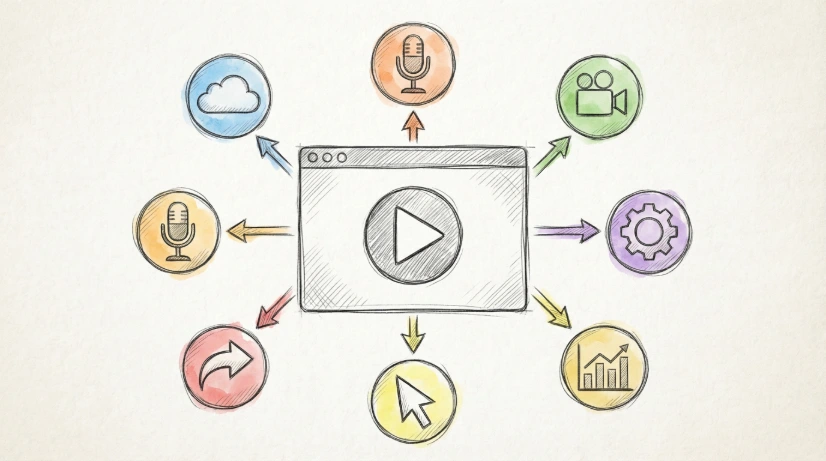
If a free download without a watermark is non-negotiable, evaluate OBS for desktop recording, ScreenPal for short narrated clips, or Jumpshare's online recorder for a browser workflow. Screentell is included below as a paid watermark-removal option: its published Free plan adds a watermark, so it does not meet a strictly free, no-watermark requirement.
Disclosure: This guide is published by Screentell's founder. The comparison uses official product descriptions checked September 9, 2026; it is not a hands-on benchmark of every tool. Make a short test export before recording anything important.
Compare the limits that affect the file you receive
| Option | Free watermark-free output | Duration and audio considerations | Suitable task |
|---|---|---|---|
| OBS Studio | Free open-source recorder, without a paid watermark-removal tier | Recording capacity depends on storage, settings and hardware; configure your audio sources | Desktop recording and streaming with source control |
| ScreenPal recorder | Officially advertises no watermark | Free recorder lists up to 15 minutes and microphone narration; computer audio is a paid feature | Short narrated screen-and-webcam recordings |
| Jumpshare online recorder | Officially advertises no watermark | Lists up to one hour per session and WebM download; check browser support and the full save flow | Browser screen and webcam capture |
| Screentell Free | No: published plan includes a watermark | Published plan lists exports up to three minutes per video | Trying manual zoom, 3D motion and visual editing |
| Screentell paid plans | Paid watermark removal | Published plans remove the Free export-length restriction; device limits still apply | Finished product demos with deliberate visual editing |
“Unlimited recordings” describes how many recordings you can make. It does not automatically mean unlimited minutes per recording, unrestricted export, or unlimited cloud storage. The table keeps those claims separate.
Choose OBS when local desktop recording is enough
OBS is free and open source, with Windows, macOS and Linux downloads. It provides scenes and source/audio configuration for recording and streaming. Set up the sources you need, make a sample and check the saved file. For a polished tutorial, plan the editing step as well as the recording step. See the official OBS site for downloads and documentation.
Choose ScreenPal for a short narrated clip
ScreenPal's official recorder page states no watermark and no account required for its free recorder. It lists a 15-minute recording limit and microphone narration. Its FAQ distinguishes computer audio as a paid feature, so a microphone-only test will not establish that it captures the sound from your application. Verify this distinction before recording a tutorial that needs both sources.
Choose Jumpshare for browser capture
Jumpshare advertises online recording of screen, camera or both, with no watermark, up to one hour per session and WebM download. Test the complete record-to-download flow on your browser. A promise about recording access should not be interpreted as a promise about every cloud, editing or sharing feature. Refer to its official recorder page for current terms.
When Screentell's paid export is worth considering
Consider Screentell when your task includes manually shaping the video: focus on a small control, add a 3D transition, annotate a result, trim waiting time or move the camera layer away from the interface. You can start recording and editing for free, then evaluate whether watermark removal is worth paying for.
The published pricing section lists a watermark and a three-minute export limit for Free. Paid plans list watermark removal and removal of that export-length restriction. These are published plan terms, not a claim that a browser can record or export any length regardless of available storage and memory.
Focus Zoom and 3D editing should not be described as an automatic click-following feature or as a reason you must upgrade to begin editing. See real product demo examples and decide whether manual editing is part of the result you need.
Test five things before recording the full video
- Export a short file. Watch the downloaded file, including its beginning and end, for a watermark or branded segment.
- Check the actual limit. Identify whether a limit applies to recording time, export time, resolution or hosted storage.
- Listen to both audio sources. Test microphone narration and app/tab sound separately. Browser audio depends on operating system, browser and capture surface.
- Check format compatibility. Try the file in its destination player or editing tool. A WebM download may need conversion for your workflow.
- Review storage and sharing. Understand whether footage stays local or is uploaded. Save a backup before clearing browser data.
Frequently asked questions
Is Screentell free without a watermark?
No. Its published Free plan includes a watermark. Paid plans offer watermark removal. Use the free workflow to evaluate the editor, and check current pricing before preparing a final delivery.
Are unlimited recordings the same as unlimited export length?
No. Recording count, recording duration and exported video length are different limits. Screentell currently publishes a three-minute limit per Free export, even though its plan lists unlimited recording sessions.
Does local processing mean nothing uses the network?
No. Local media processing means footage can be handled on your device; account, billing and website requests can still use the network. Browser storage can also be cleared, so download backups of important work.
Which browsers can I use with Screentell?
Use a supported Chromium desktop browser such as Chrome or Edge. Screen sharing, audio capture and export codecs depend on browser and operating system support. Test the complete recording and export flow on your device.
Should I pay just to record without a watermark?
You may not need to. Start with a free no-watermark tool if basic capture meets your requirements. Consider a paid option when its editing, support or sharing workflow solves a need you actually have.
Need help choosing a Windows workflow? Read our Windows screen recorder guide. Want to evaluate visual editing? Record a short Screentell sample with its Free limitations in mind.