Best Screen Capture for Chrome: A Complete Guide for 2026
Discover the best screen capture for Chrome tools in 2026. Compare top extensions including Screentell's 3D effects, pricing, and privacy features. Find the perfect Chrome screen recorder for your needs.

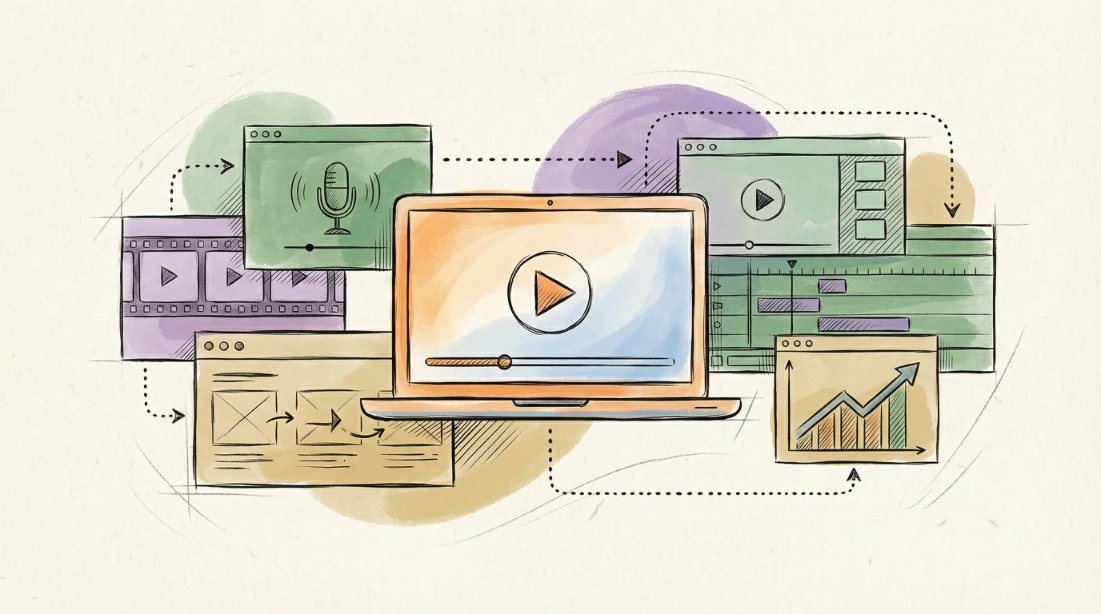
If you’re searching for the best screen capture for Chrome, you’re not alone. Screen recording has become a core workflow for product demos, tutorials, remote collaboration, and developer documentation.
This guide is written from hands‑on experience building and using screen recording tools across Chrome, macOS, and Windows. Instead of generic feature lists, we focus on real‑world usage, trade‑offs, privacy, and long‑term value—so you can confidently choose the right screen capture tool for your needs in 2026.
Why Screen Capture for Chrome Matters in 2026
Chrome has become the primary workspace for modern professionals. From SaaS dashboards and landing pages to developer tools and internal systems, most critical workflows now live in the browser.
A high‑quality screen capture for Chrome allows you to:
- Create clear product demos and walkthroughs
- Record tutorials and educational content
- Communicate asynchronously with teams and clients
- Document bugs, UX issues, and feature behavior
Industry research consistently shows strong growth in screen recording software, driven by remote work, creator‑led marketing, and browser‑first tools. The trend is clear: faster setup, better visuals, and stronger privacy guarantees matter more than ever.
How We Evaluate Screen Capture Tools for Chrome
To ensure this guide meets modern EEAT standards, each tool is evaluated using the same criteria:
- Recording Architecture — browser‑based vs native installation
- Real‑World Performance — CPU usage, stability, and output quality
- Editing Flexibility — what you can realistically do after recording
- Privacy & Data Handling — local vs cloud processing
- Learning Curve vs Output Quality — time to first professional result
These criteria reflect how screen capture tools are actually used—not just how they’re marketed.
Top Screen Capture Tools for Chrome (Expert Comparison)
Screentell — Browser‑First Screen Capture for Chrome
Screentell is a modern, browser‑based screen capture tool designed specifically for recording web experiences. It runs directly in Chrome and other Chromium browsers, with no installation required.
Real‑World Experience
In practice, Screentell excels at recording landing pages, SaaS products, and long‑scrolling websites. For example, when capturing a homepage walkthrough, you can combine smooth auto‑scrolling with cinematic 3D transforms, producing a camera‑like motion that would otherwise require manual keyframing in traditional editors.
This makes Screentell particularly effective for marketing demos and tutorials where visual polish matters.
Key Features
- Cinematic 3D Transforms for depth, rotation, and motion
- Hand‑drawn annotation stickers for emphasis and storytelling
- 100% local processing — recordings never leave your device
- Browser‑based workflow — no installs, instant updates
- Face camera layer with flexible positioning
Limitations to Consider
Screentell focuses on browser‑based workflows. It is not designed for long gaming sessions or advanced live streaming setups with complex audio routing.
Pricing
- Free: Unlimited recording with watermark
- Pro: $6.99/month
Best For
- Product demos and landing pages
- Tutorials that need visual clarity
- Privacy‑conscious users
OBS Studio — Maximum Control for Power Users
OBS Studio is a free, open‑source screen recorder widely used for gaming and live streaming.
Real‑World Experience
OBS offers unmatched control, but setup is time‑consuming. Even a basic tutorial often requires configuring scenes, audio sources, and resolution settings—making it less ideal for quick Chrome screen capture tasks.
Strengths
- Completely free and open source
- Advanced scene and audio control
- Large plugin ecosystem
Trade‑offs
- Steep learning curve
- No built‑in editing
- Requires installation and configuration
Best For
- Gamers and streamers
- Users needing full technical control
Camtasia — Professional Training Software
Camtasia is a long‑established tool for corporate training and course creation.
Real‑World Experience
Camtasia shines in post‑production, but for simple Chrome screen capture it can feel heavy. Launch time, project setup, and system resource usage are noticeably higher than browser‑based tools.
Pricing
- $299.99 one‑time license
Best For
- Corporate training teams
- Long‑form educational content
Loom — Fast Async Communication
Loom popularized quick screen recording for team communication.
Real‑World Experience
Loom is fast for recording short messages, but visual control is limited. You trade polish and flexibility for speed and cloud convenience.
Pricing
- Free (limited)
- Business: $12.50/month
Best For
- Remote teams
- Async updates and explanations
Screen Capture for Chrome: Feature Comparison
| Tool | Price | Installation | Editing Power | Privacy | Best Use Case |
|---|---|---|---|---|---|
| Screentell | $6.99/mo | None | High (3D, annotations) | 100% Local | Demos & tutorials |
| OBS Studio | Free | Required | Low | Local | Streaming & gaming |
| Camtasia | $299.99 | Required | Very High | Local | Professional courses |
| Loom | $12.50/mo | Desktop | Low | Cloud | Team communication |
How to Choose the Right Screen Capture for Chrome
For Product Demos and Tutorials
Recommendation: Screentell
Why?
- Browser‑first workflow
- Professional visual effects without heavy editing
- Strong privacy guarantees
- Competitive pricing
👉 Start recording with Screentell
For Streaming or Gaming
Recommendation: OBS Studio
Choose OBS if you need live broadcasting, advanced audio routing, or scene switching.
For Team Communication
Recommendation: Loom
Best for fast, disposable recordings where speed matters more than polish.
Key Trends Shaping Screen Capture in 2026
- Browser‑based recording over native installs
- Privacy‑first, local processing
- Visual storytelling with motion and depth
- Faster time‑to‑publish for creators and teams
Screentell aligns strongly with these trends through its browser architecture, 3D transforms, and local‑only processing model.
Conclusion: Choosing the Best Screen Capture for Chrome
The best screen capture for Chrome depends on your workflow:
- Screentell for polished demos and tutorials
- OBS Studio for full technical control
- Loom for quick team communication
If your work lives in the browser and visual quality matters, Screentell offers one of the fastest paths from idea to professional screen recording.
About the Author
This article is written by the Screentell Product & Engineering Team, who design and use screen recording tools daily for product demos, tutorials, and developer documentation. The insights in this guide are based on hands‑on experience with both browser‑based and native screen capture workflows.
Last updated: January 2026