
Focus & Motion (2D / 3D)
Screentell's "secret sauce" is its ability to create smooth, professional camera movements that guide your viewer's eye.
Understanding Keyframes
A Keyframe marks a specific point in time where the camera position or zoom level changes. Screentell automatically animates the transition between these points.
-
Init State: Your video starts at original position and 1x zoom (full screen).
-
Keyframe Segment: Add a keyframe segment to change the camera position or zoom level.
-
Zoom In (2D) Keyframe: The start point of a keyframe segment. Take 2x zoom level for example, the camera will smoothly move from 1x to 2x.
-
Zoom Out (2D) Keyframe: The end point of a keyframe segment. Take 2x zoom level for example, the camera will smoothly move from 2x to 1x.
-
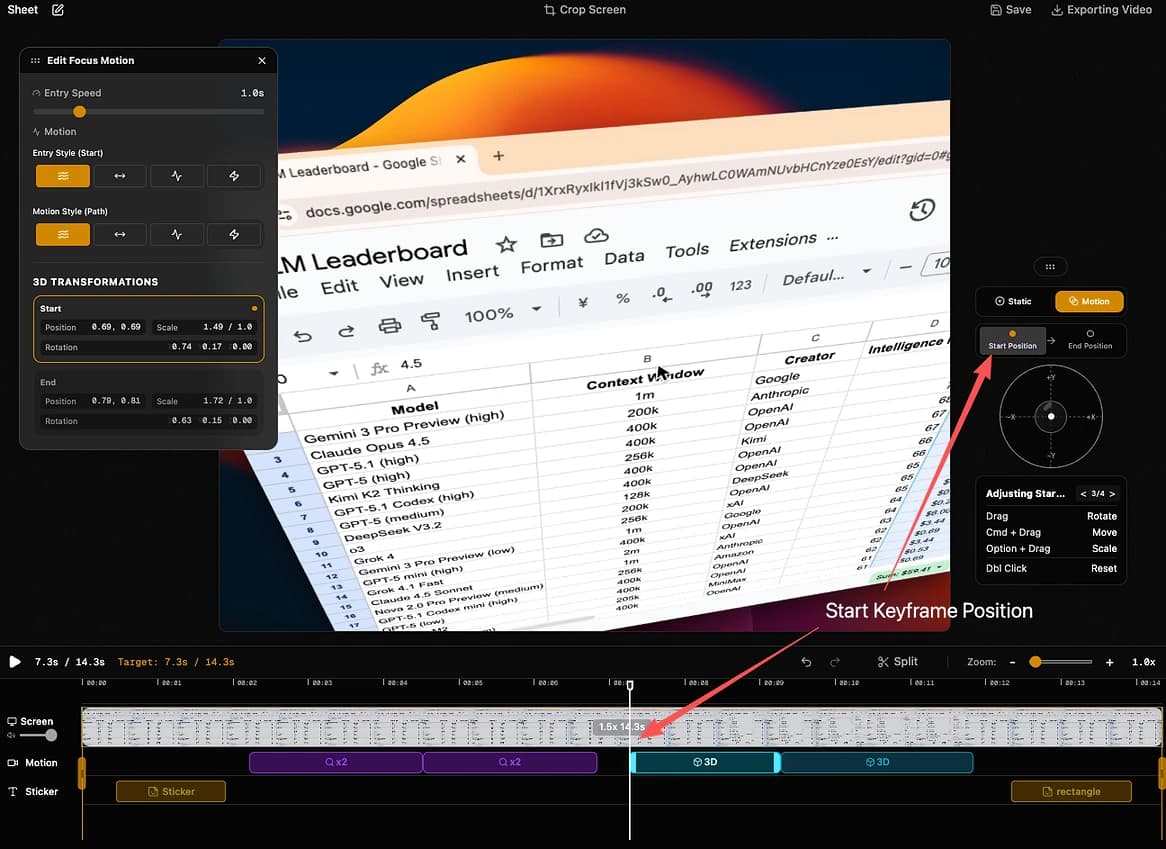
Transform Start Keyframe (3D): The start point of a 3D keyframe segment. Adjust the 3D joystick to fine-tune the position. The camera will smoothly move from the previous keyframe to this one.
-
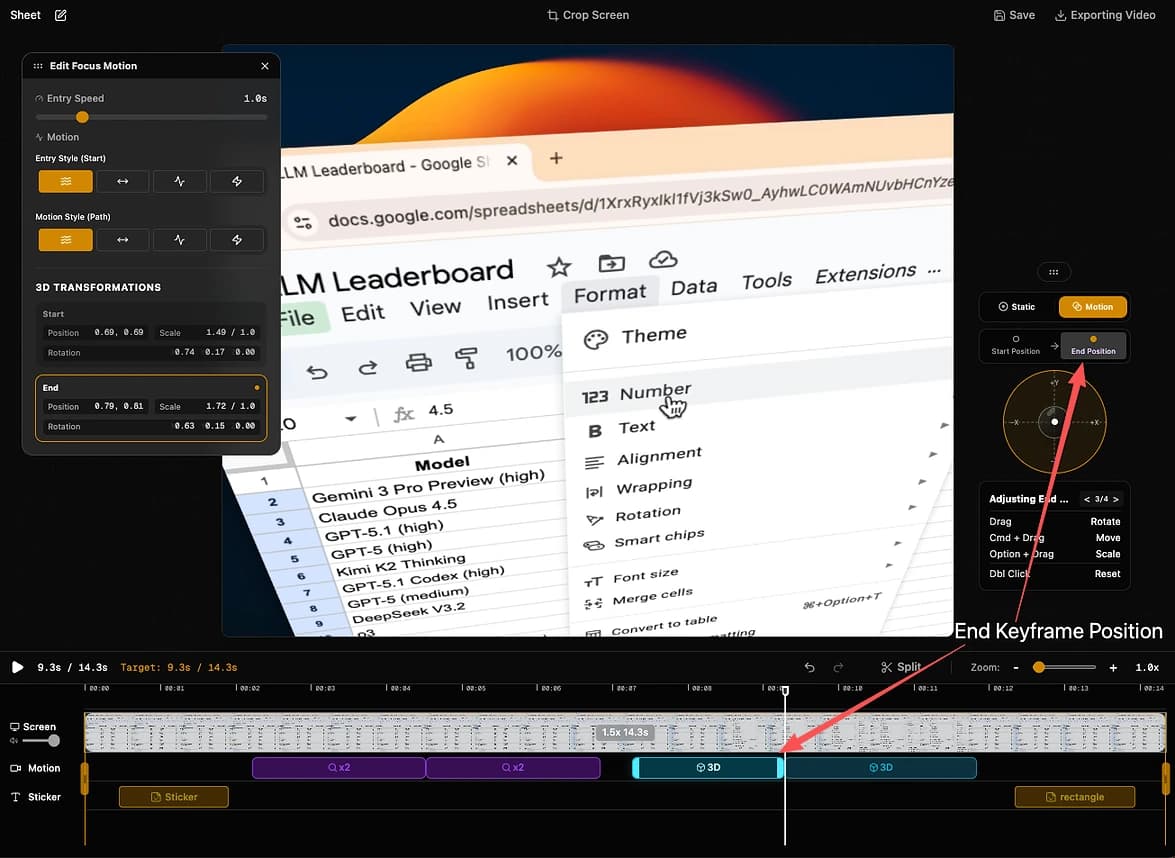
Transform End Keyframe (3D): The end point of a 3D keyframe segment. Adjust the 3D joystick to fine-tune the position. The camera will smoothly move from the Transform Start keyframe to this one. and Finally from Transform End to the Init.
Adding a Keyframe
To add a zoom or focus point:
- Scrub the timeline to the desired moment.
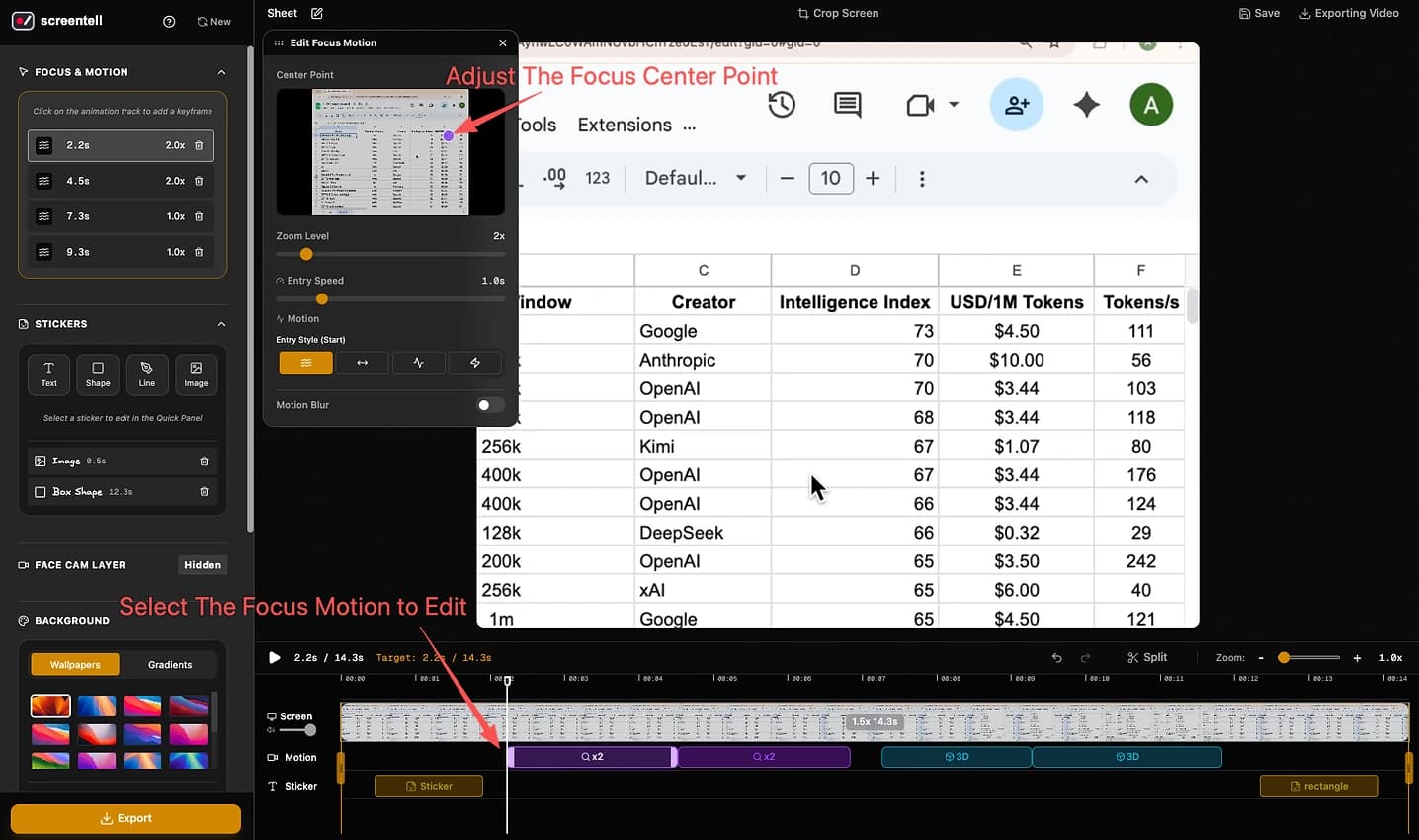
- Click on the timeline motion track at the position, select 2D or 3D motion to add.
- A Motion Keyframe will appear on the Motion Track (below the ruler) at the selected position.
- The Focus Motion Panel (Inspector) will show the settings, if 3D motion is selected, you can also adjust the 3D joystick to fine-tune the focus.

[!TIP] You can also duplicate existing keyframe segments to quickly copy settings by right-clicking on a existing keyframe segment in the Zoom Track.
Focus & Motion Panel
When a keyframe segment is selected, the Inspector Panel allows you to customize it:
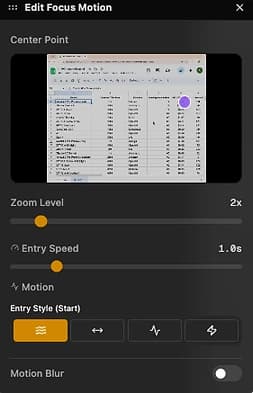
Zoom Level
- Adjust how close the camera zooms in.
- Range: 1.0x (Full Screen) to 10.0x (Micro Detail).
Transition Speed
- Controls how fast the camera moves to this position.
- Range: 0.1s (Fast) to 5.0s (Slow).
- You can also enable Motion Blur for smoother, more cinematic movement.
Motion Style
- Smooth: Standard ease-in-ease-out. Best for natural movement.
- Linear: Constant speed. Ideal for continuous pans or tracking.
- Elastic: Adds a bouncy overshoot effect.
- Snap: Instantly cuts to the new position.
Editing Keyframes
The Zoom Track provides powerful timeline controls for managing your keyframe segments:
- Move: Drag the keyframe segment left or right to change when the movement occurs.
- Resize Duration: Hover over the left or right edge of a keyframe segment and drag to adjust its duration.
- Context Menu: Right-click a keyframe segment to:
- Duplicate: Create a copy of the keyframe segment next to the original.
- Remove: Delete the keyframe segment.
- Update Focus Point: While a keyframe segment is selected, click a new spot on the video preview to update its target focus point.
💡 Recipe: The "Pan" Effect
To move from one focused area to another (Pan) while staying zoomed in:
- Create a Zoom Keyframe Segment (e.g., 2x zoom on the left side).
- Move the playhead forward a few seconds.
- Create a second Zoom Keyframe Segment with the same zoom level.
- The camera will stay zoomed in and smoothly pan from left to right between these two points.
3D Transforms
You can break free from the 2D plane and add depth to your screen recordings using 3D Transforms.
Activating 3D Mode
When you select add a 3D motion keyframe segment, you will see a Edit Focus & Motion Panel and a 3D Joystick panel appear (floating on screen).
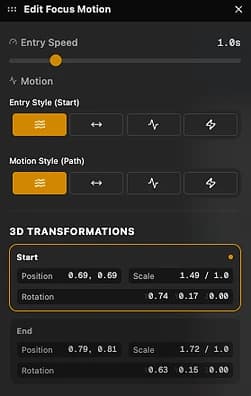
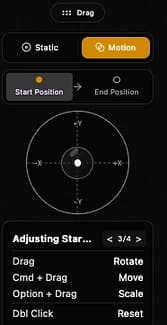
- Use the Joystick to rotate the camera.
- Toggle between Static (Single Position) and Motion (Animated 3D Path).
- Persistent Settings: Switching back to Static will pause the motion but save your End Position settings, so you can interactively toggle without losing work.
Using the 3D Joystick
The joystick allows you to control the camera in 3D space:
- Rotate (Tilt/Pan): Simply drag the joystick nub or directly on the screen.
- Move (X/Y): Hold Cmd (Mac) or Ctrl (Windows) + Drag to move the camera focus.
- Zoom/Scale: Hold Opt (Mac) or Alt (Windows) + Drag Up/Down to move closer or further.
- Reset: Double-click the joystick to reset to default.
- Move Panel: Drag the Grip Handle at the top of the panel to position it anywhere on your screen.
Dynamic 3D Motion
Switch to Motion mode to create complex camera moves within a single keyframe segment:
- Start Position: The camera state at the beginning of the keyframe segment.
- End Position: The camera state at the end of the keyframe segment duration.
-
Adjust start and end keyframe separately: Use Joystick to adjust the position, rotation, and scale of the camera for both start and end keyframes,
-
Auto-Switching: The panel automatically selects "Start" or "End" for editing based on where your selected keyframe is located within the keyframe segment.
-
Entry Style: Controls the transition into this keyframe segment from the previous one.
-
Motion Style: Controls the movement within this keyframe segment (between Start and End).
This allows you to create continuous, flowing camera paths (e.g., "Orbiting" the screen while the video plays).