Windows Screen Recorder Tools: Choose by Workflow
Compare Windows screen recorders for quick clips, product demos, streaming and team sharing. Includes Snipping Tool steps and a browser recording workflow.

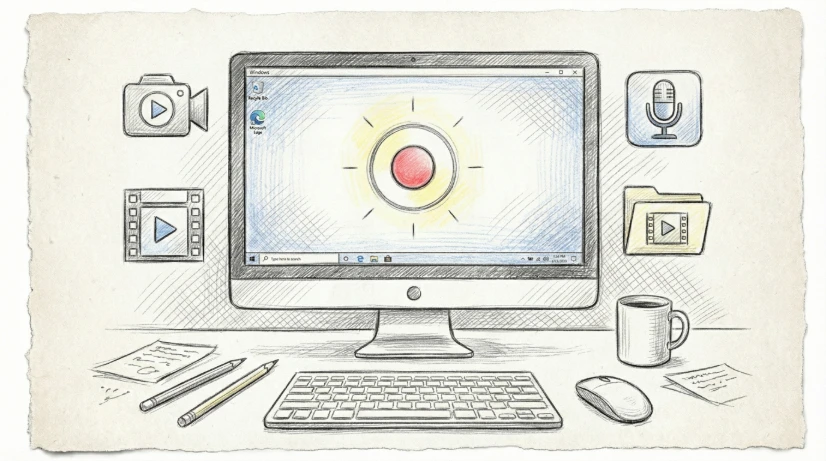
For a quick clip on Windows 11, start with Snipping Tool. Choose OBS Studio for scene-based recording and streaming, Screentell for a browser-recorded demo with manual visual editing, or Loom when hosted sharing and team feedback are the main task. The right recorder depends on what you need after you press Stop.
Published by Screentell's founder. This is a comparison of documented workflows, not a performance benchmark. Official product sources were checked on September 9, 2026. This guide incorporates the useful setup and capture advice from our former Windows desktop recorder article.
Compare Windows screen recorder tools by the finished result
| Tool | Choose it for | Setup and trade-off | Official source |
|---|---|---|---|
| Snipping Tool | A short recording of a selected screen area | Included with Windows 11; use Edit in Clipchamp for further video editing | Microsoft instructions |
| OBS Studio | Recording or streaming a composition of multiple sources | Desktop installation and scene/audio setup | OBS Studio |
| Screentell | Product demos with zoom, 3D motion and annotations | Supported desktop browser; visual editing is manual and published Free exports have limits | Recorder, plans |
| Loom | Recording a message and sharing a hosted link | Account and hosted workflow; check plan limits before committing | Loom recorder |
| ShareX | Repeated capture tasks, screenshots and GIF recording | Windows application with configurable capture and upload workflows | ShareX |
Precise paid prices are omitted because billing terms and included features change. Follow the official sources before purchasing. For a dedicated native recorder you are already considering, compare its current trial against the same sample task instead of relying on an old price table.
Record a quick clip with Windows 11 Snipping Tool
Open Snipping Tool, select Record and then New. You can also use Windows + Shift + R. Select the area you want, start recording, and stop when the task is complete. Save the clip, or choose Edit in Clipchamp for further editing.
These are the Windows 11 video instructions. Do not assume Windows 10's Snipping Tool has the same recording feature. Microsoft's Steps Recorder migration guide describes the built-in alternatives, including Xbox Game Bar and Clipchamp.
Xbox Game Bar is useful for game or application capture. Check that it captures the particular application and transitions you need before relying on it for a multi-window tutorial. A ten-second sample is a better check than discovering a missing dialog after a full take.
Turn a browser recording into a product demo
Screentell fits a different task: you need the recording to explain a feature, not just preserve what happened on screen. Use Chrome, Edge or another supported Chromium desktop browser. There is no separate recorder application to install.
- Open the Screentell recorder and select Screen only or Screen + camera.
- In the browser dialog, choose the tab, window or display you intend to demonstrate. A narrow capture can reduce unrelated notifications and background information.
- Enable microphone narration if needed. Choose shared audio only when the browser offers it for that surface, then make a short test and listen to the result.
- Record the task. After stopping, cut delays, add manual Focus Zoom points and use arrows or labels to identify important controls.
- Preview the export range and download the result. Upload the file to your chosen host if you need a shareable link.
Zoom and 3D transforms are applied in the editor; this is not automatic cursor tracking or live zoom while recording. A separate camera layer can be moved, resized or hidden after capture. See product demo examples to decide whether that editing work is useful for your task.
The published Free plan lists unlimited recording sessions, watermarked videos and exports up to three minutes each. Session count and export duration are different limits. See current plans before making a longer video. Resolution and export success also depend on device resources and browser codec support.
When OBS, Loom or ShareX is a better fit
OBS provides scenes, source composition and audio mixing for recording and live streaming. Choose it when controlling several sources during capture matters more than editing zooms afterward. Keep time for configuring the scene and audio; this guide does not claim a fixed learning time or compare CPU usage.
Loom is worth keeping when the required output is a hosted link with a communication workflow. Screentell's file-export workflow means you manage the next upload yourself. Our Loom alternatives guide compares the different production needs.
ShareX offers Windows capture, GIF recording and configurable file-sharing destinations. Review its after-capture and upload actions before recording sensitive material. A local capture tool can still upload when you configure it to do so.
Check audio, privacy and readability before the full take
For browser recording, microphone audio and shared tab/system audio are separate sources. If the browser does not offer audio for a window, try a supported tab-sharing option or choose a recorder that supports the exact audio source you need. Browser and OS permissions can both affect recording.
Use sample data, close private tabs and silence notifications. Local media processing in Screentell avoids uploading footage for editing, but it does not prevent private information from appearing in a video you later share. Download backups; browser project storage can be removed by clearing site data.
View the sample at the size your audience will see. A high-resolution recording alone will not make tiny interface text readable on a phone. Crop to the relevant area or use a measured zoom.
Frequently asked questions
Can I record on Windows without installing a recorder?
Yes. Windows 11 includes Snipping Tool video capture, and Screentell provides a supported desktop-browser workflow. Your browser still needs permission to capture the selected screen or window.
What should I choose for a free recording without a watermark?
Start by evaluating OBS or the other choices in our no-watermark guide. Screentell's published Free tier includes a watermark; paid export options should not be confused with a completely free no-watermark recorder.
Can I record my screen and webcam together?
Screentell offers Screen + camera. OBS supports composing multiple sources. Decide whether you need to change the camera layout after capture or control the composition live.
Where does the recording go?
That depends on the tool and your settings. Screentell keeps media in browser storage and exports a file to your device. Hosted tools use their own storage and sharing workflow; configurable upload tools require you to review their destinations.
Is Screentell the same as Screen Studio on Windows?
No. It is a browser option with manual visual editing. See the Screen Studio alternative comparison for the difference from Screen Studio's automatic Mac workflow.