
Stickers & Annotations
Enhance your video with visual cues using Stickers. Screentell provides a variety of shapes and tools to highlight information or add text.
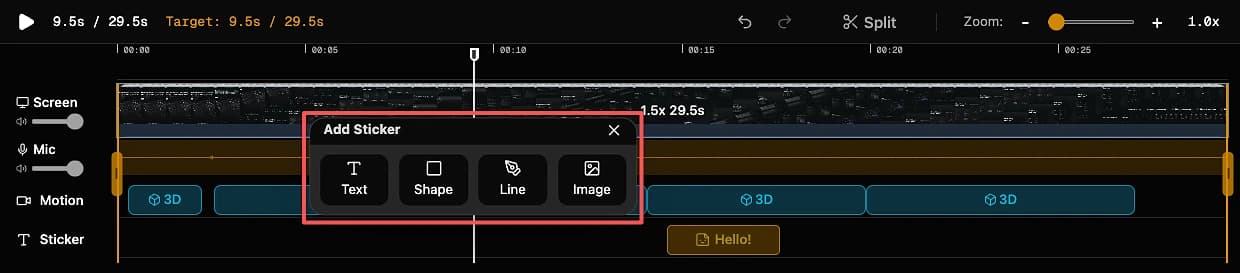
Adding a Sticker
- Locate the Sticker Track on the timeline.
- Click the position on the Sticker Track , a pop-up will appear.
- Select a sticker type:
- Text: Add text.
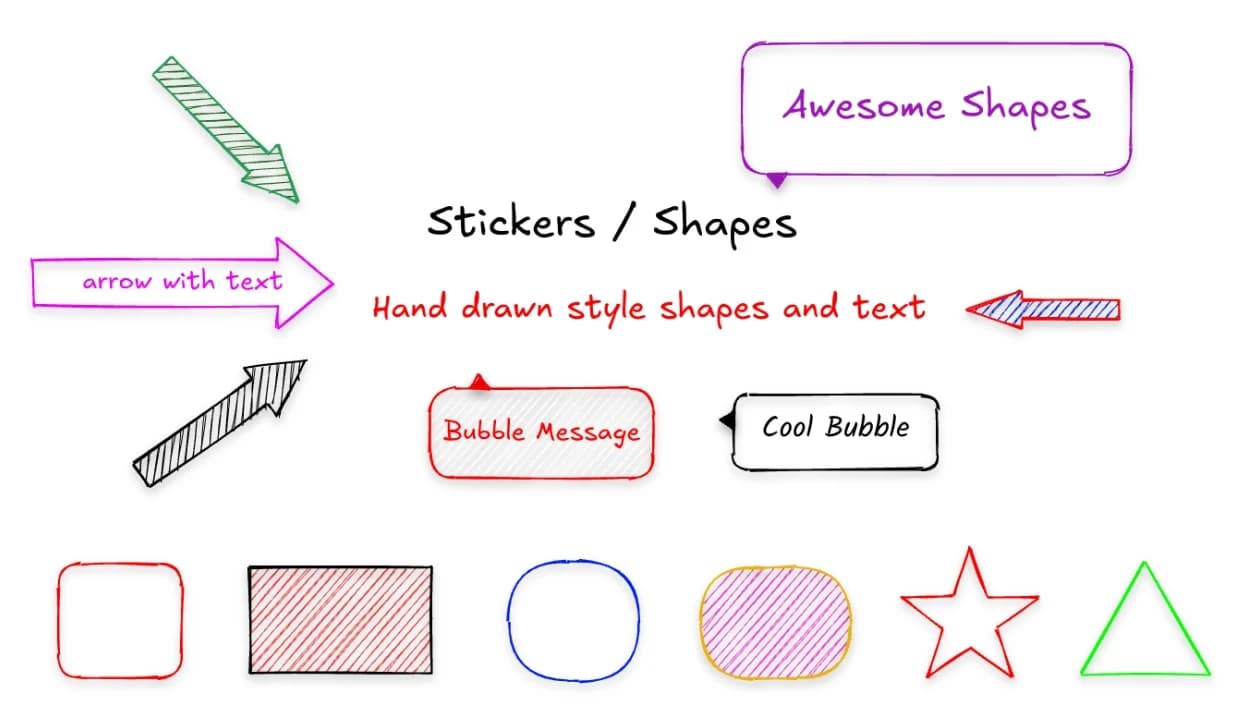
- Shape: Add shapes.
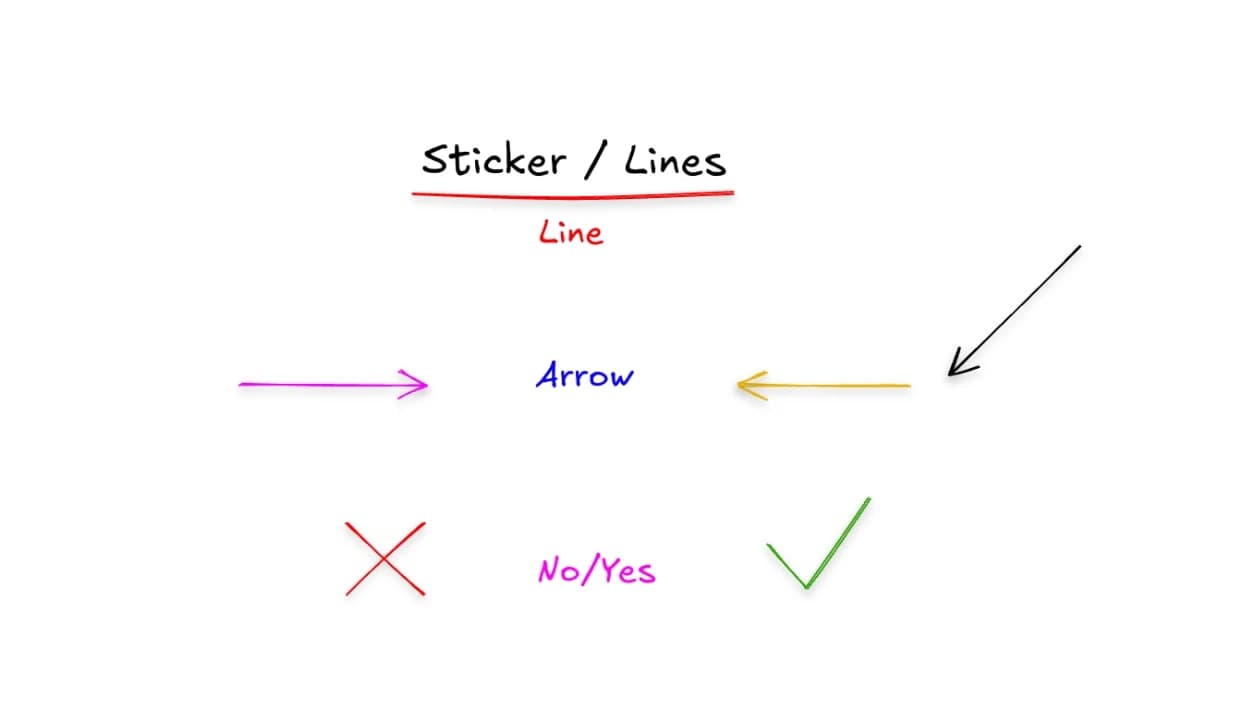
- Line: Add lines.
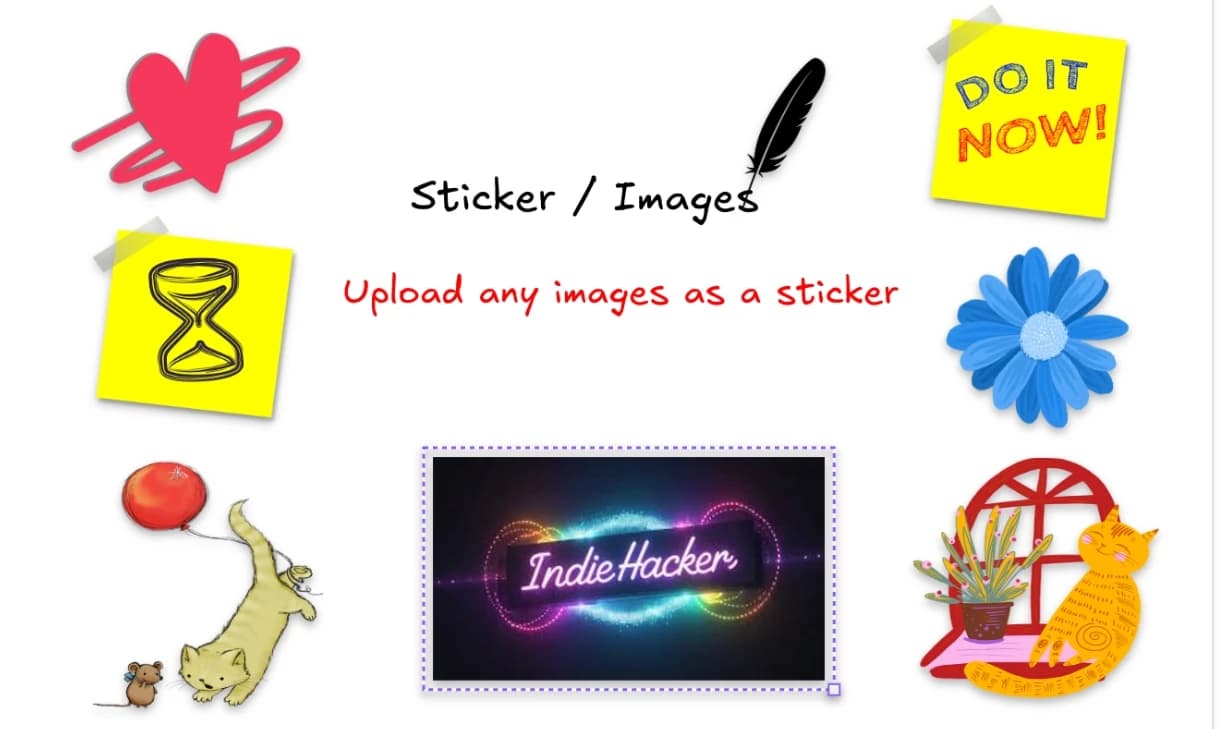
- Image: Upload your own PNG/JPG assets.
Manipulating Stickers
On the Canvas (Preview)
- Move: Click and drag the sticker to reposition it.
- Resize: Drag the corner handles (blue dots) to change size.
- Rotate: On the Edit Sticker Panel adjust the rotation slider to rotate the sticker.
On the Timeline
- Duration: Drag the left or right edge of the sticker bar on the timeline track to control how long it stays on screen.
- Position: Drag the entire bar left or right to change when it appears.
Customizing Appearance
Use the Edit Sticker Panel (left side) to style your selected sticker:
- Text: Type inside the text box to add a label to your sticker.
- Color: Choose a background color.
- Border: Adjust border thickness and color.
- Roundness: Make corners sharp or fully rounded.
- Tail Position (Bubble only): Adjust where the speech bubble tail points.
💡 Recipe: Highlighter
To highlight a section of text or code:
- Add a Rectangle sticker.
- Choose a bright color (Yellow, Green).
- Use a thin Border only to frame the content without covering it.