
Cutting & Speed Control
A professional guide to trimming videos and controlling playback speed in Screentell. Create high-impact product demos by perfectly timing your screen recordings.
Trimming & Cutting
Screentell makes it easy to remove mistakes, long pauses, or dead air from your recordings.
Trimming the Ends
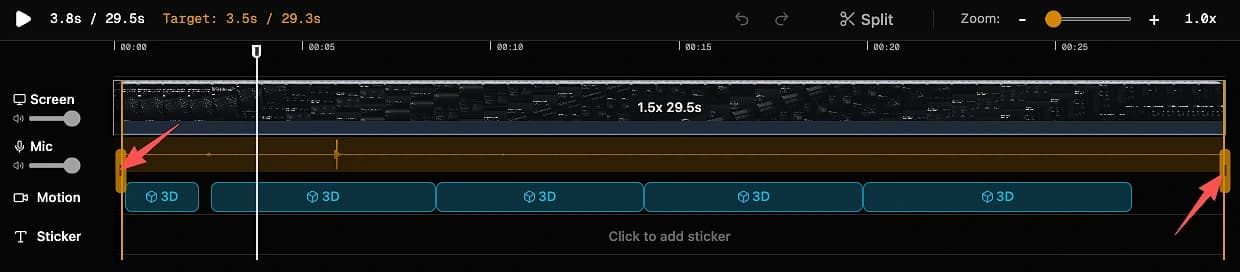
To quickly shorten your video from the start or finish:
- Hover and drag the Start Handle or End Handle of the video clip on the timeline.
- Drag inwards to remove the unwanted beginning or ending.
Splitting Clips
To cut a section in the middle or separate a clip:
- Move the Playhead (the vertical line) to the exact moment you want to split.
- Click the Split button (Scissors icon) on the timeline toolbar, or right click the clip and select Split.
- Your clip is now divided into two independent segments.
- You can right click the unwanted segment and select Delete to remove it.
Speed Control
Speed up long processes (like installations or downloads) or slow down fast actions for emphasis.
- Right click a video clip on the timeline and select Set speed.
- Select the speed value in the context menu:
- 1x: Normal Speed
- > 1x (e.g., 2x, 5x): Fast Forward. Reduces the clip duration.
- < 1x (e.g., 0.5x): Slow Motion. extends the clip duration.
💡 Pro Tip
Ripple Delete: When you delete a clip in the middle of your timeline, Screentell automatically shifts the remaining clips to simplify the editing process.